
Translate your MadCap Flare files without copy-pasting

Generate the XLIFF 1.2 file from your Flare project with MadCap Lingo. Upload it to Redokun. Your translator works in one shared Web Editor for all target languages, no copy-pasting into Word and no separate terminology spreadsheet to keep in sync.
Once you start, you’ll wonder how you ever managed your technical document translations without Redokun.
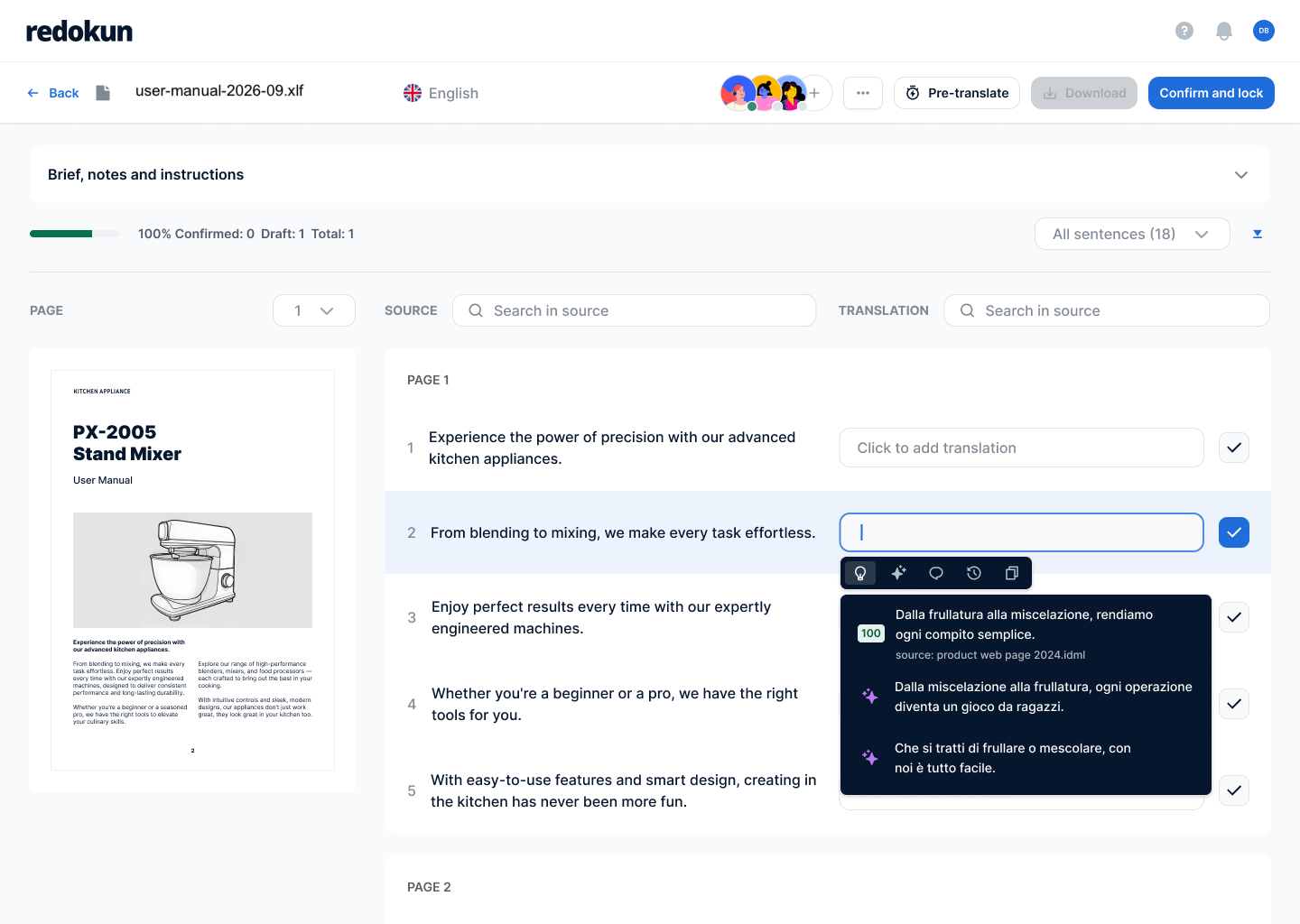


You use MadCap Flare and Lingo. But your translation projects still need a shared workspace.

MadCap Flare creates your technical documents. But your datasheets, manuals, and compliance documents often need to go out in 8 or more languages.

MadCap Lingo
helps you generate the XLIFF 1.2 file so you can translate your Flare projects. But it doesn't offer a shared workspace.

Whoever manages the translation
needs one centralised space to coordinate all the translation projects. That's where translators collaborate directly, instead of working from separate files.
Enter Redokun:
From MadCap Flare export to translated document, in one workflow
The same XLIFF 1.2 file format your project already generates — this isn't a dedicated Flare plugin, it's file-format support for what Flare already exports.

No conversion step, no copy-pasting into Word first.

Translation Memory suggests matches from anything translated before. Your Glossary flags the terms that have to be translated accurately.

Once your team completes translations, download the XLIFF file from Redokun.
Publish the translated documents.

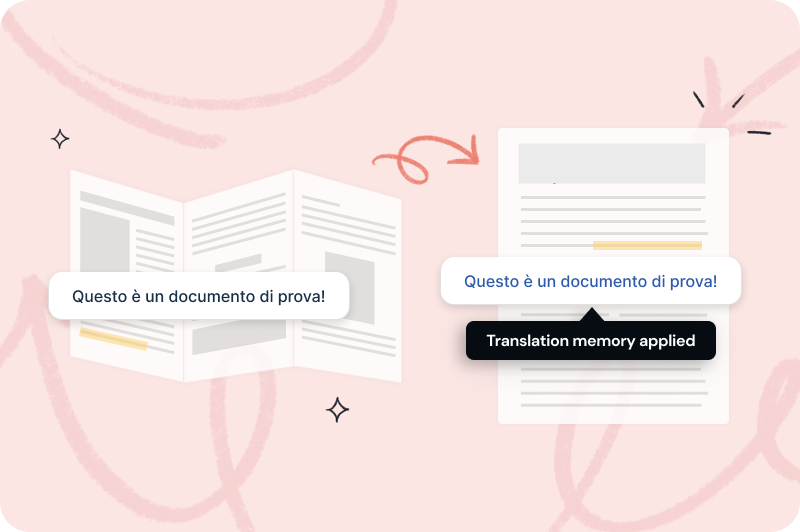
Automatically reuse previously approved translations
- Build a database of your approved translations, and automatically reuse them, so you can reduce the overall translation volume and achieve consistency across all documents.
Use approved translated terms, every time
- Product names, part numbers, and technical terms — the same words, used the same way, across every manual, datasheet, and language. Nobody has to remember what the last translator called a component three product revisions ago.

Update documents in minutes, across all languages
- Every product update brings revisions to manuals and datasheets. Quick Revisions identifies only the segments that changed since the last translation — your translators review what's new, not the whole document again. A revised manual across 8 languages doesn't mean starting from zero in any of them.


%20(1).png)

Two ways to get started right now, depending on your needs.
No subscription. Your 30 days start when you buy.
For one project with a real deadline. Right if you translate a few times a year.
For teams that translate every month across several languages and document types.
Add more seats any time
For teams translating at high volume for many markets, or connecting Redokun to their own systems.
Add more seats any time
Free for 14 days.
Try the Basic Plan free for 14 days, with 20,000 exportable words and no credit card required.
No subscription. Your 30 days start when you buy.
For one project with a real deadline. Right if you translate a few times a year.
For teams that translate every month across several languages and document types.
Add more seats any time
For teams translating at high volume for many markets, or connecting Redokun to their own systems.
Add more seats any time
Free for 14 days.
Try the Basic Plan free for 14 days, with 20,000 exportable words and no credit card required.
What technical writers ask before choosing Redokun.


No. Redokun doesn't have a dedicated Flare plugin or integration. It accepts the XLIFF 1.2 file your Flare project already exports — the same file format many translation tools work with.
Download it from Redokun and import it back into your Lingo project. Lingo exports the finished Flare project in the target language from there, ready to publish. Redokun doesn't replace that last step — it's where the translation itself happens.
Sure! Redokun’s free trial is a great way to experience how quickly you can complete your translation projects. It doesn’t require a credit card.
The free trial is based on our Basic plan and gives you access for 14 days.
You can upload a file of up to 100MB, containing up to 20,000 words.
We support various file types, including InDesign (.idml), Microsoft Office (Word, Excel, PowerPoint), HTML, SRT, JSON, XLIFF 1.2, and more. You can check the full list of supported file types here.
Once you start translating your test file and see how it works, if you’d like to continue and complete your translation project, you can simply purchase one of our plans to keep translating.
Apart from XLIFF 1.2, Redokun also supports InDesign (.idml), Word, PowerPoint, Excel, InDesign, XML, JSON, HTML, SRT, and plain text files. You can use the tool with your wider team members for their translation needs, too.