What does "translate a document and preserve the layout" mean?
Layout-preserving document translation means converting the text of a document from one language to another while keeping all original design elements — fonts, spacing, columns, images, and formatting — exactly as they were. The translated file is delivered in the same file format as the source.
Without layout preservation, translated documents often break: text overflows text boxes, columns collapse, or formatting disappears entirely. This is especially common in design-heavy files like InDesign catalogs, PowerPoint decks, and branded Word documents.
What is the easiest way to translate a document online?
For personal use, there area a few quick options:
Google Docs
Open your document in Google Docs → click Tools → Translate Document → choose a language → click Translate. Done in under a minute. File size limit: 10 MB.
Best for: Simple text documents you need to understand quickly.
Not best for: Anything where layout, formatting, or brand voice matters.
Google Translate
Upload a .docx, .pdf, or .pptx file directly at translate.google.com. Fast and free, but formatting is rarely preserved and output quality varies.
Best for: Getting the gist of a foreign-language document. Not best for: Publishing or sharing the translated version externally.
DeepL
Upload a document at deepl.com for higher translation quality than Google Translate, with reasonable formatting preservation on standard Office files. Free tier has a 5-page / 3-file-per-month limit; Pro removes those limits.
Best for : Higher-quality drafts of Word or PowerPoint files, especially for European languages.
Not best for: InDesign files, complex layouts, or team workflows.
ChatGPT
Paste text or upload a file and ask ChatGPT to translate it. Flexible and good for tone-sensitive content, but it does not preserve document formatting and has a context window limit on long documents.
Best for: Short passages, creative content, or when you need control over tone and style.
Not best for: Full documents where layout needs to survive the translation.
For business use: Use a dedicated translation tool like Redokun.
It handles multiple languages at once, preserves your original design, and lets your whole team collaborate in one place.
Best for: Marketing materials, branded documents, multi-language projects, or any file where layout matters.
Not best for: One-off personal translations where quality and formatting are not a concern.
Which file types can be translated while preserving their layout?
Redokun supports layout-preserving translation for the following formats:
- Adobe InDesign:
.idml - Adobe Illustrator:
.ai,.eps,.svg(via Illustrator script) – Read more in this blog post - Microsoft Word:
.docx - Microsoft PowerPoint:
.pptx - Microsoft Excel:
.xlsx - HTML5:
.html(UTF-8) - Subtitles:
.srt(UTF-8) - Plain Text:
.txt(UTF-8) - XLIFF 1.2:
.xliff,.xlf(UTF-8) – (Articulate Rise 360, Articulate Storyline 360, Generic XLIFF) - XML:
.xml(e.g., Adobe Captivate) - JSON:
.json(UTF-8)
Redokun supports more than 100 languages, including right-to-left languages.
What are the most common problems when translating documents?
Before using any online translator, you should be aware of these common issues that could be causing frictions in your translation workflow.
Most document translation headaches fall into three categories:
- Juggling too many moving parts. Multiple translators, multiple languages, and multiple file formats — all tracked in spreadsheets and email threads — slow projects down and create errors.
- Using too many tools for one job. When your translation process spans email, Slack, a spreadsheet, and a separate design tool, someone always has to manually update everything when content changes.
- Reformatting from scratch after translation. Even when the translation is accurate, the formatted document isn't ready to publish. Text length changes between languages, which breaks layouts and forces a designer to step in.
A translation management system solves all three by keeping files, languages, translators, and AI tools in one place.
How do you translate a document with Redokun? (Step-by-step)
Redokun is an online translation management system. An incredibly simple tool you can use to speed up your translations with better collaboration and AI automation.
Using Redokun, you can translate the following types of documents online while preserving their layout: Word, Excel, PowerPoint, InDesign, and HTML documents.
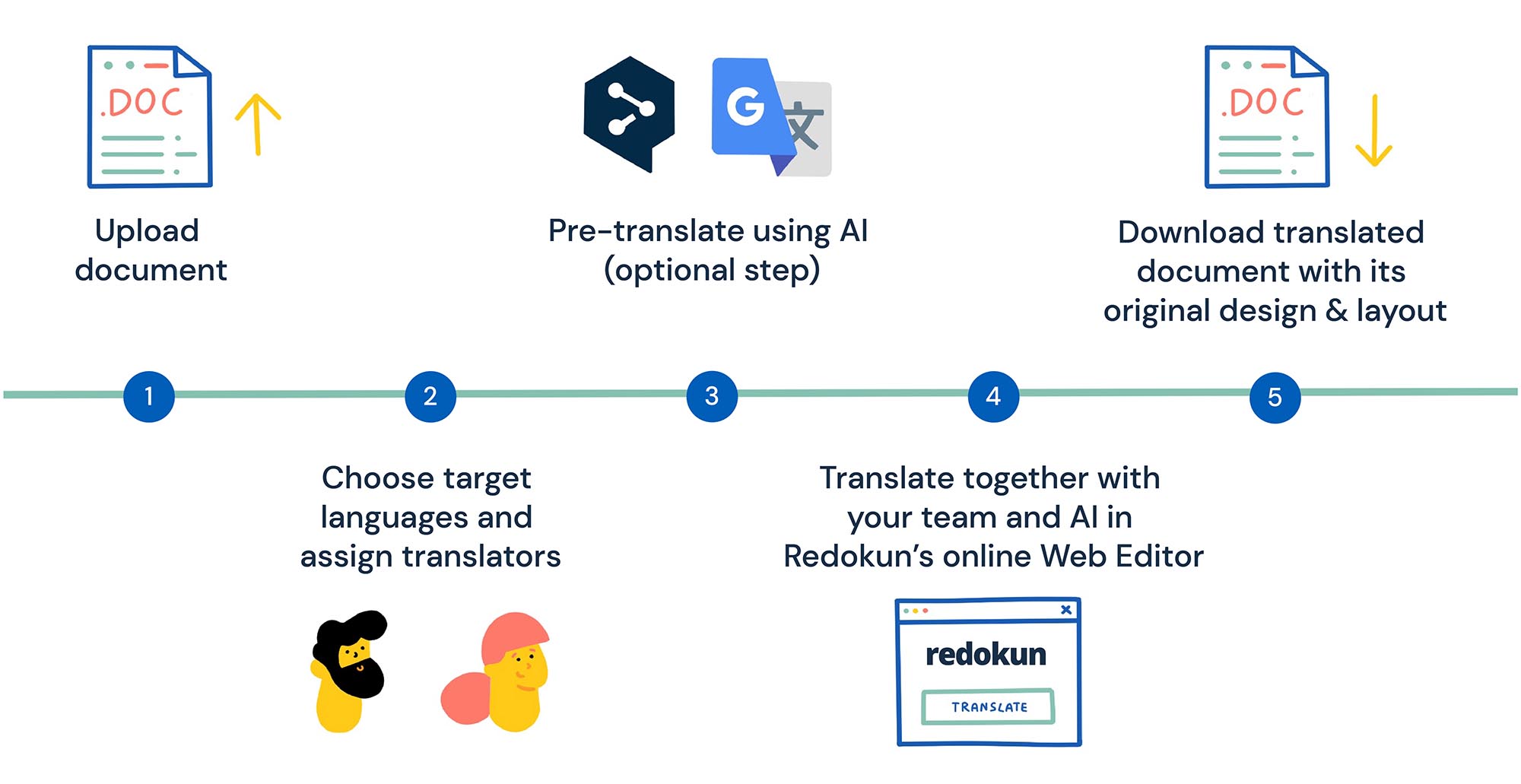
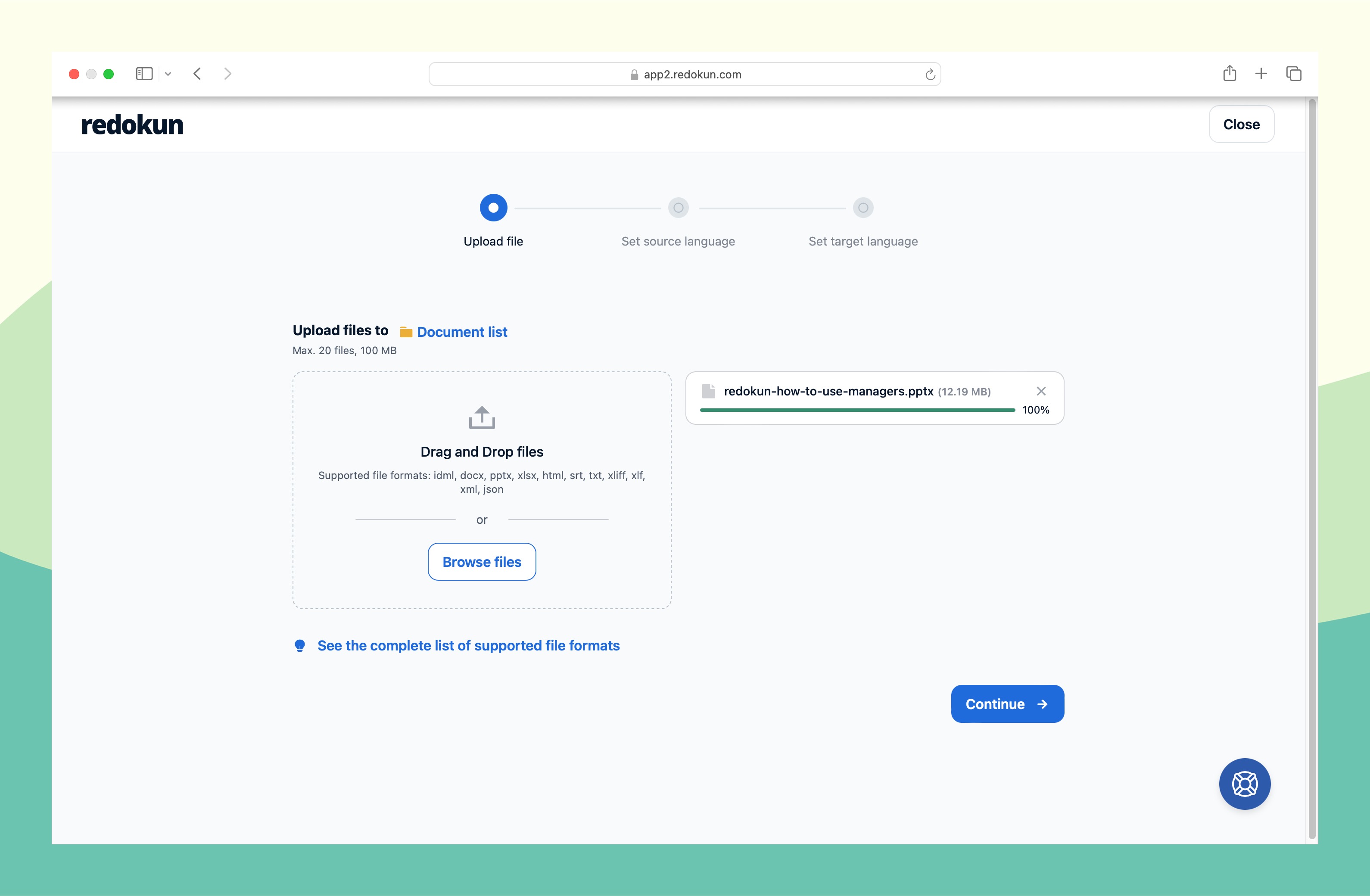
Step 1: Upload your original document to Redokun
- Start a 14-day free trial of Redokun
- Go to the Upload Document page.
- Upload your original document (could be .docx, .xlsx, .pptx, .idml, .html files). See all supported file formats here.
Note: You don't have to manually extract your text from your document for translation. Redokun does it for you.
Step 2: Set your target languages and assign translators
Next, you can set the source language and target language(s) for your document. Redokun currently supports more than 100 languages. For each language, you can invite translators by email or assign yourself. Translators receive an invitation link to a browser-based Web Editor. No need for software installation.
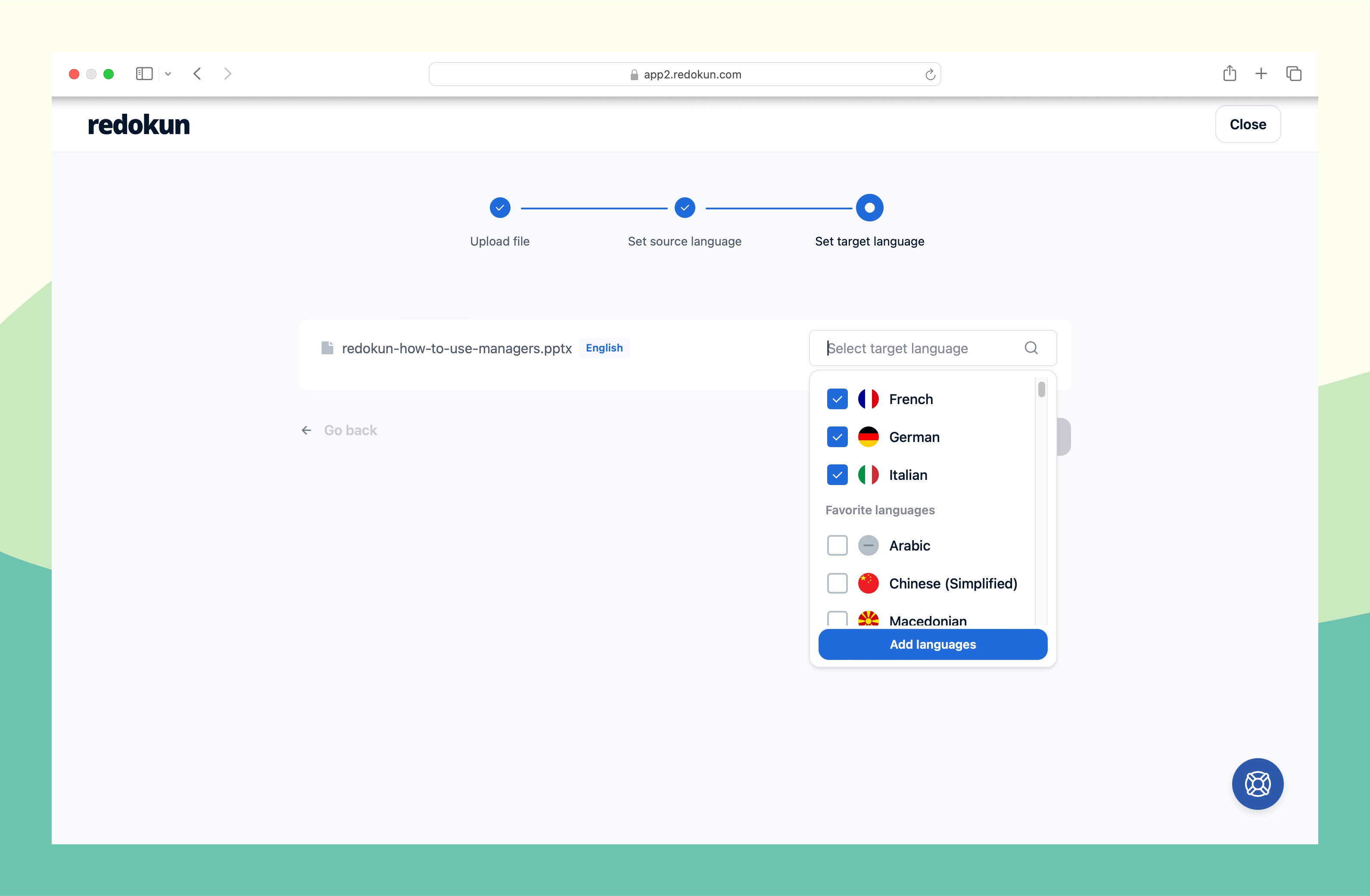
For each target language, you can assign your preferred translators by entering their email address. You can also assign yourself as the translator.
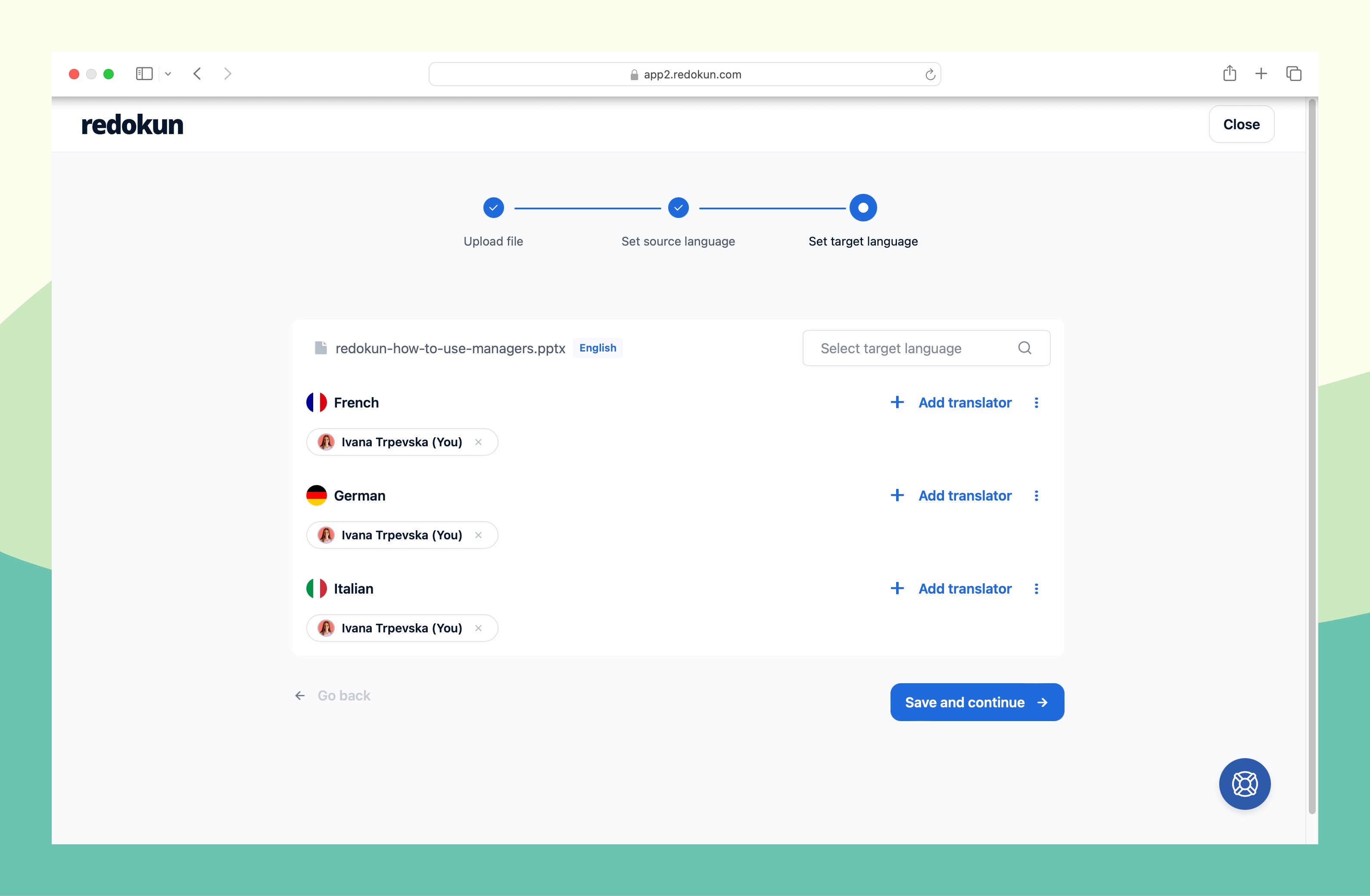
Your translation team will receive an invitation to start translating the document on Redokun.
Step 3: Pre-translate the entire document using AI (optional but recommended)
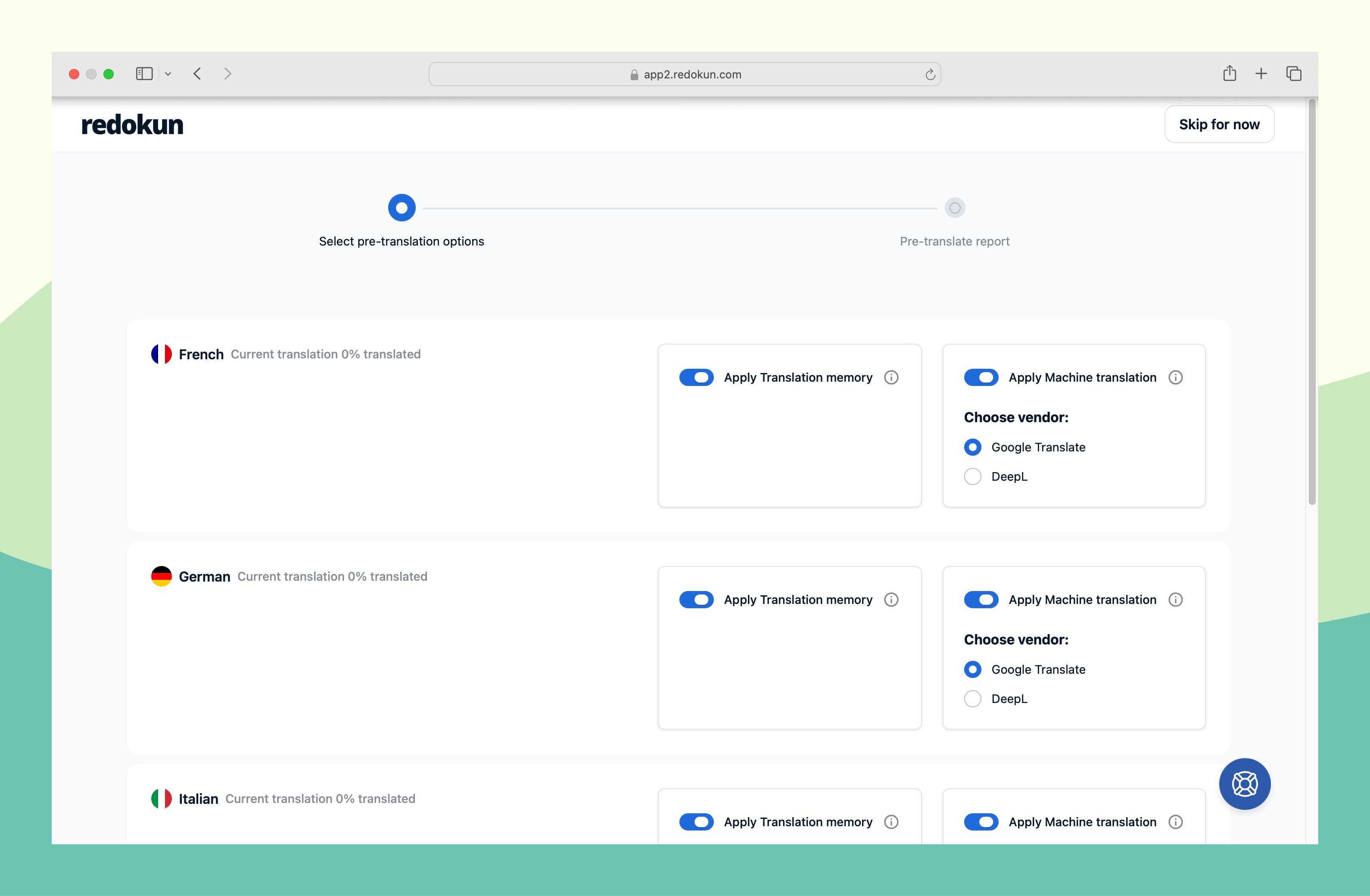
You will also get the option to pre-translate the entire document before your team starts working on it. Generally, this feature helps them save the time and effort of having to come up with the translations from scratch.
In the Pre-translate step, you can choose either one or both of the following tools to automatically translate your content:
- Past translations. Also known as Translation Memories, which is a unique database of every translation you've approved on Redokun. It helps you instantly translate new documents that contain text you've translated before.
- AI translation (Google Translate, DeepL or ChatGPT). If you haven't completed any translation on Redokun, you can use the built-in AI translator to suggest translations for all text segments. Then, you can refine them in the next step.
This step gives your translators a full first draft before they start. If you've already set up a Glossary, the AI translation will follow your terminology instructions automatically.
Step 4: Translate in the Web Editor
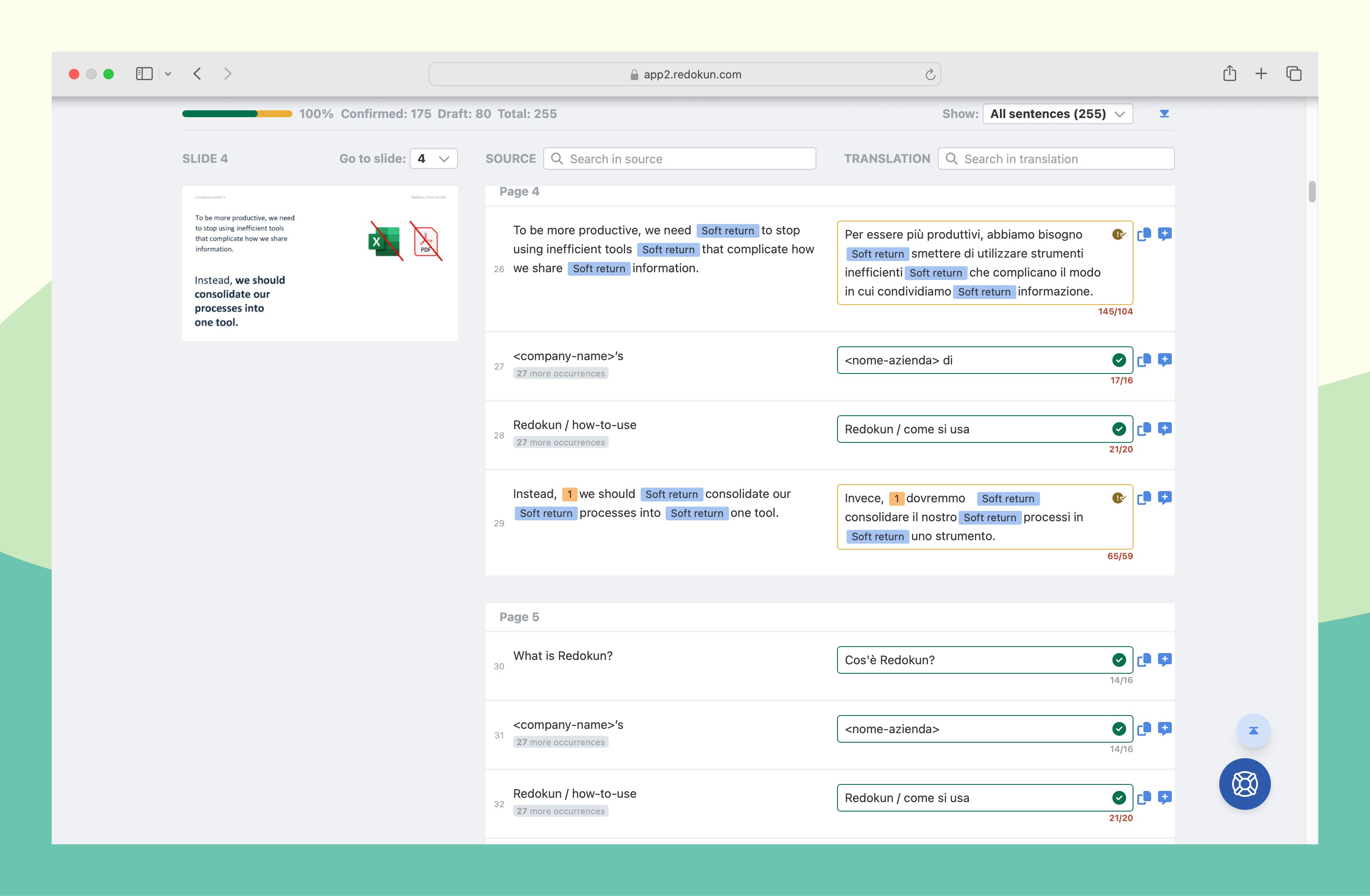
Now you and your team can translate the document you uploaded using Redokun's online Wed Editor. Here's what it looks like:
How to use the Web Editor
- Source text column (on the left): This is where the original text of your document appears, divided into smaller segments so they're easy to read and translate.
- Translation column (on the right): This is where you enter your translation. You can review and edit the translated content directly within the interface, ensuring accuracy and consistency. When you click on each box, you'll also get instant suggestions generated from Google Translate, DeepL, or your past translations. Just click once to use them or edit them. If you opted for the pre-translation step, the translation boxes would be automatically filled out.
- Page previews: If you have uploaded a PowerPoint or InDesign document, you will also see a preview of the page on the left-hand side. This gives you a better context of the document while translating.
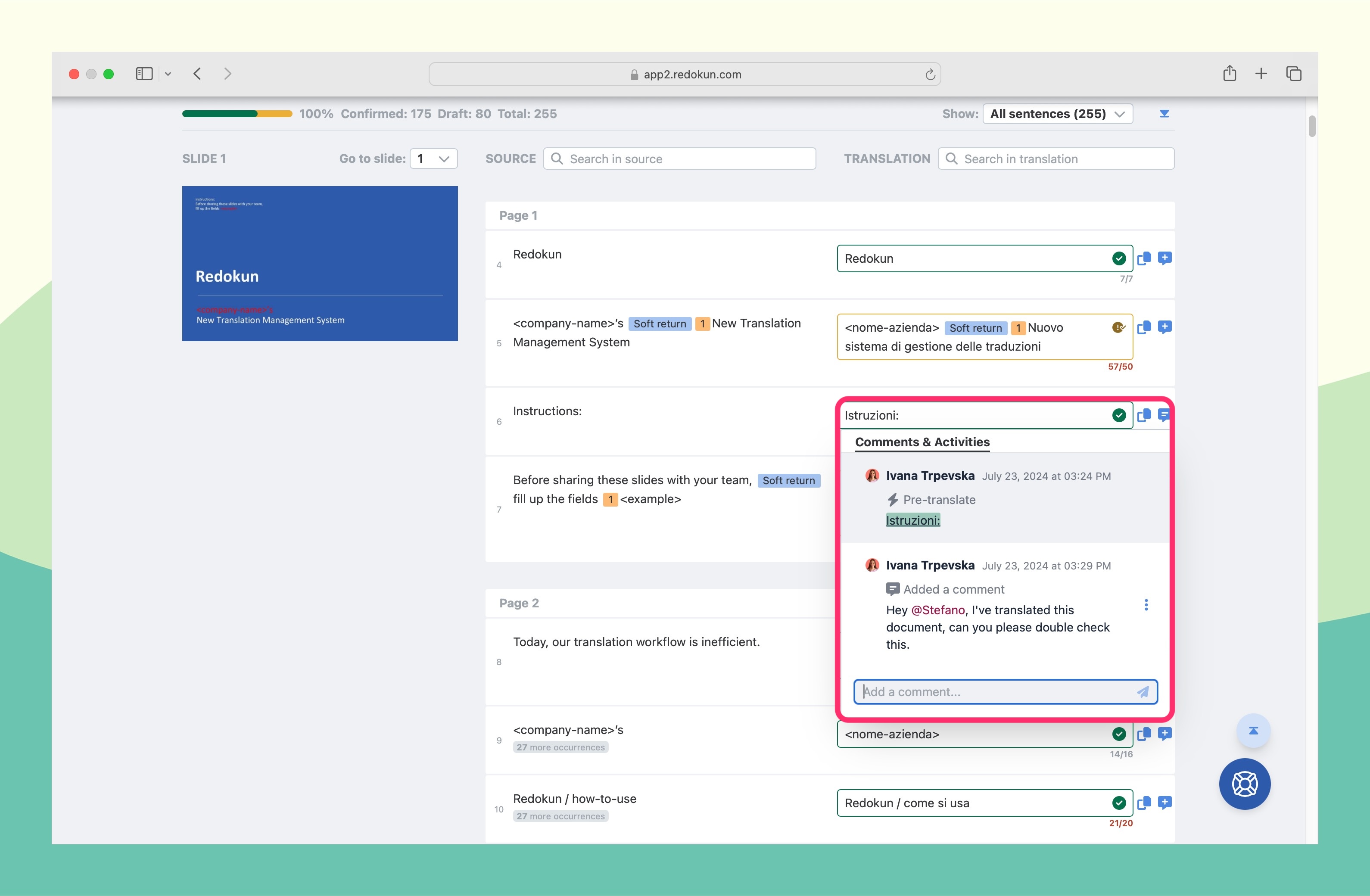
The Web Editor also supports live collaboration. Translators can leave comments, tag colleagues, and request feedback on specific segments — all without leaving the tool.
Once every translation box is filled out, the translator can click Confirm Translation at the top right corner of the Web Editor.
Step 5: Download your translated document in its original design and file format - auto-generated in just a few seconds
Once a translation is confirmed, you can go to the Document List to download your translated document.
You'll find the Download button at the end of the completed target language. Redokun auto-generates the translated file in the original format and design in seconds.
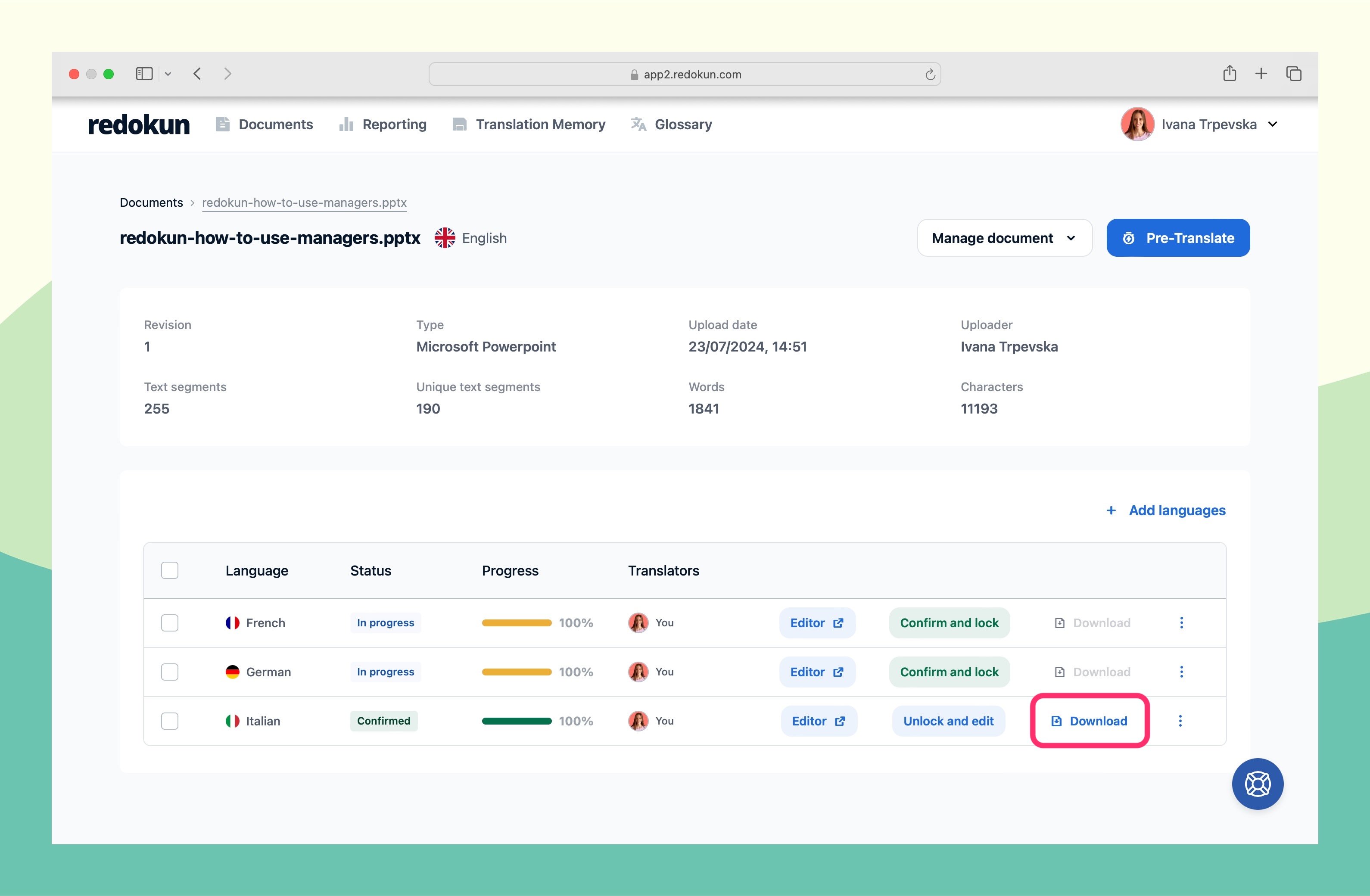
Using Redokun, you can easily translate any document you need, quickly and cleanly, without ever worrying about the formatting.
Try Redokun for free today. No credit card needed.
How does Redokun compare to other document translation options?
Why should you use Redokun to translate documents online
Here's what Pia Andresen, the marketing Coordinator of EMS says about using Redokun:
It's fast to get started. No lengthy onboarding. Translators can start working within minutes of receiving an invitation — no training required.
Everything lives in one place. Your documents, target languages, translator assignments, and progress tracking are all visible from one dashboard. No more chasing updates across Slack, email, and spreadsheets.
Past translations pay forward. Translation Memory automatically reuses approved translations from previous projects. The more you translate, the faster (and cheaper) new projects become.
Brand consistency across languages. Redokun's built-in Glossary ensures that brand names, product terms, and technical vocabulary are always translated the same way, regardless of which translator is working.
No design work after translation. Redokun preserves your document's layout automatically. When you download the translated file, it's ready to use.
Here's where you can see Redokun in action:
Translation guides for specific file formats
Want more detailed translation tutorials for your specific document type? Check out these specific guides we've created.
- How to translate a Word document
- How to translate a PowerPoint presentation
- How to translate an Excel spreadsheet
- How to translate an InDesign document
- How to translate a HTML document
Frequently asked questions
How long does it take to translate a document?
With AI pre-translation in Redokun, a draft of an entire document is ready in seconds. Human review time depends on length and complexity. For context: professional translators produce an average of 2,000–3,000 words per day without AI assistance — adding machine translation post-editing roughly doubles that output. A standard 10-page marketing document (~2,500 words) could take a full day to translate manually. With AI pre-translation, a human reviewer can often finish in a few hours.
Why does my translated document look broken after translation?
Most general-purpose tools (Google Translate, ChatGPT) extract only the text and discard layout information. When they reassemble the document, formatting is lost or approximated. Tools purpose-built for document translation, like Redokun, work at the file format level. They extract textwithout touching the structure, so the layout is never at risk.
Can I translate an InDesign document without a plugin?
Yes. Redokun works with .idml files (InDesign's export format) and requires no plugin to translate. Export your .indd file as .idml from InDesign, upload it to Redokun, and download the translated .idml when done — which you then open back in InDesign. An optional browser extension is available to keep live previews in sync.
How do I keep terminology consistent across translated documents?
Use a glossary. Redokun has a built-in Glossary where you define how specific terms, such as product names, brand language, technical vocabulary, should be translated in each language. Every translator working in Redokun sees and applies those terms automatically.
Can I update a translated document without redoing everything?
Yes. Redokun's Translation Memory stores every approved translation. With Quick Revisions, when you upload a revised version of a document, it automatically matches unchanged segments to existing translations, so translators only work on what's new or edited.
What's the difference between AI translation and professional translation?
AI translation (Google Translate, DeepL, ChatGPT) is fast and free, but may miss nuance, tone, or brand voice. Professional human translation is slower and costs more, but is essential for legal, medical, or high-stakes marketing content. Redokun supports both: use AI translation for a first draft, then have a human translator refine it.
What's the difference between translating a document and localizing it?
Translation converts text from one language to another. Localization goes further: adapting content for a specific region's culture, conventions, and context (date formats, currency, idioms, imagery). For most marketing documents, localization produces better results than straight translation.
Ready to translate your next document without the formatting headache?
Redokun is free to try for 14 days. No credit card required. Upload any document and see your layout preserved automatically.