We’re excited to announce two major improvements that make glossary management much easier and smoother:
- Translators can now request Glossary and Translation Memory (TM) Edit access to manage them more actively.
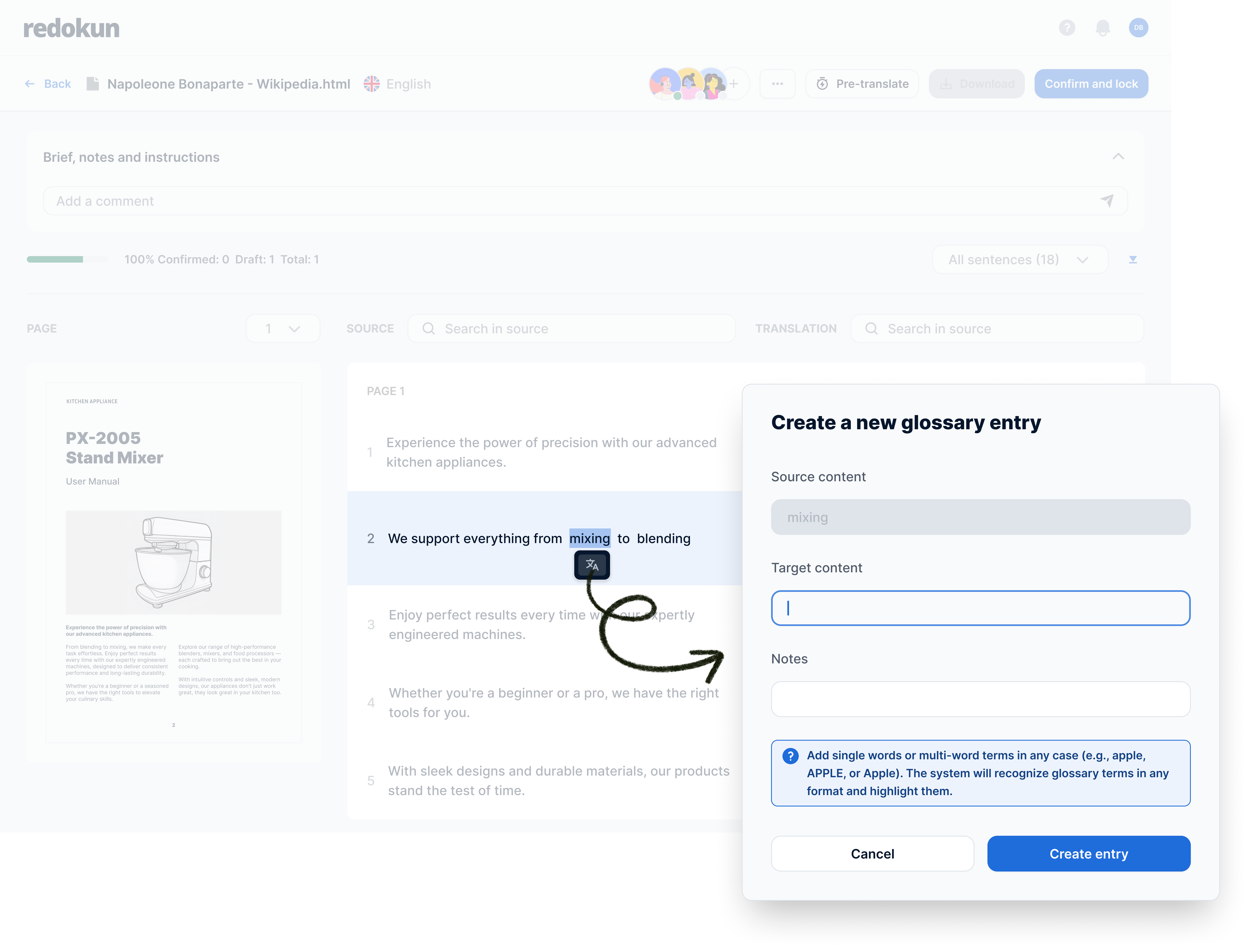
- Translators with glossary edit access can now create and edit glossary entries directly inside the Web Editor without leaving the translation screen.
How it works
While working in the Web Editor, translators with Glossary and TM Edit access can:
- Click a word or phrase in the source text
- Add or edit the corresponding term in the glossary for their target language
The Web Editor then refreshes automatically and instantly applies the new glossary term across matching segments.
This means translators can fix missing terminology and improve consistency as they translate, without bouncing between pages.
Why this helps translators
- Less back-and-forth – terminology work becomes part of the translation flow
- Higher consistency – terms get added at the exact moment they’re needed
- Cleaner reviews – fewer terminology issues for editors to correct later
If you already have glossary edit access, you can start using this immediately in the Web Editor.
How to request Glossary & TM Edit access
Contact your team manager to request Glossary and TM Edit access for the specific source–target language pairs you work on.
Need help?
If you’d like help setting this up or want a quick walkthrough with your team, contact us at [email protected].
Nicole